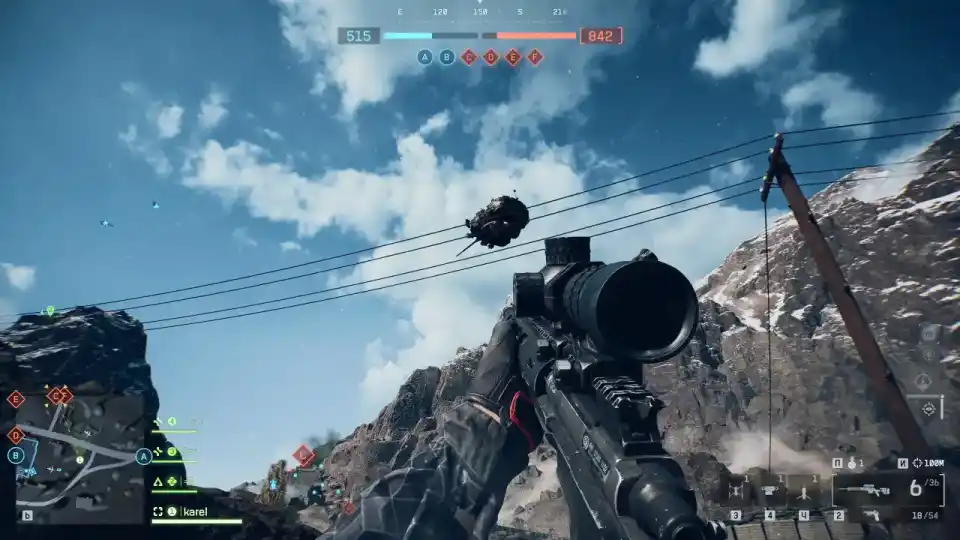
ARC Raiders Playtest: How to Disable or Reduce Sharpening Effect
Tired of the over-sharpened look in ARC Raiders? Here’s a short guide on how to tone it down or remove it completely for a smoother image.
Adjust ARC Raiders’ graphical sharpness by editing one setting in your GameUserSettings.ini. Choose your preferred sharpness level for a cleaner, more natural look.
The game’s built-in visuals are great, but the default sharpening filter can make textures overly crisp and harsh, especially if you’re using DLAA. Luckily, this can be fine-tuned within a few steps.
Step-by-Step Fix
- Open File Explorer and navigate to this path:
%userprofile%\AppData\Local\PioneerGame\Saved\Config\WindowsClient - Locate and open the file named GameUserSettings.ini using Notepad or any text editor.
- Scroll to the bottom of the file and paste these lines:text
[SystemSettings] r.tonemapper.sharpen=0.5- The number represents sharpening strength.
- Use any value from 0 to 1.
- 0.5 = balanced sharpness.
- 0 = completely disabled (not recommended since the image may look too soft).
0.5to preserve detail without the harsh over-sharpen effect.
Optional Tweak: Disable Lens Distortion
While you’re editing the file, search for this line:
textLensDistortionEnabled=True
Change it to:
textLensDistortionEnabled=False
This removes the subtle fisheye distortion on the screen edges, giving a flatter, more cinematic image.
Final Notes
Save the file and restart ARC Raiders. You should immediately see smoother textures and natural transitions without exaggerated edge sharpness. It’s a small change but makes a big difference in visual comfort, especially during long sessions or reconnaissance missions.
by ShroomLord