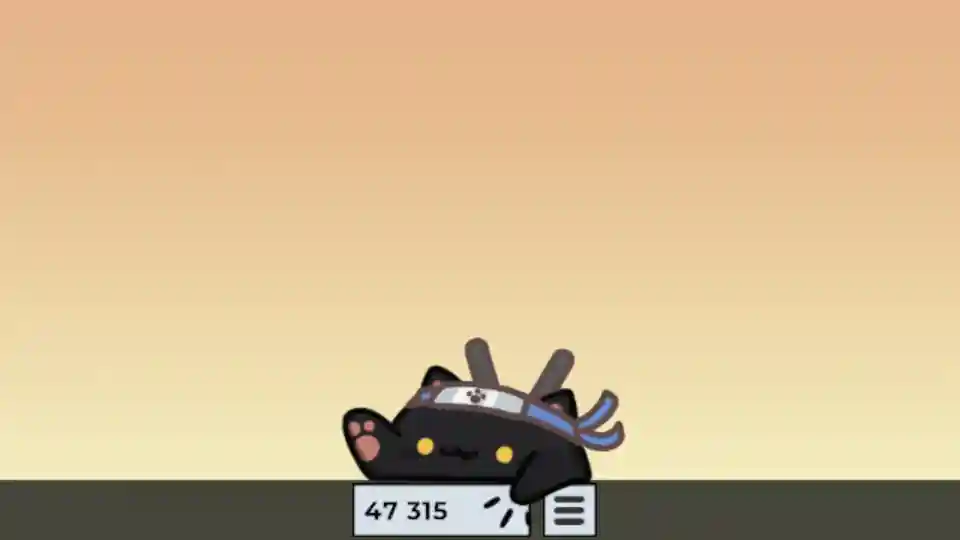
Bongo Cat – How to Fix Invisible Cat Bug
This is your go-to troubleshooting guide for the Bongo Cat desktop app. We’re breaking down how to fix the infamous invisible cat bug and giving you the lowdown on the frustrating counter reset issue.
So you’ve downloaded Bongo Cat, the super cute and customizable desktop companion that drums along with your mouse and keyboard. The vibes are immaculate. But then, one day, things go wrong. Your cat disappears, or that massive click-counter you were so proud of just resets to zero. Big yikes.
Don’t trip. These are common issues, and we’ve got the solutions (or at least, the explanations). This guide will walk you through how to fix the most common bugs so you can get back to your bongo-tapping journey.
The Invisible Cat Bug: Where Did He Go?!
This is the number one problem players run into. You launch Bongo Cat, you can see its icon running in your system tray or taskbar, but the cat itself is nowhere to be found on your screen. He’s gone completely AWOL.
Why it Happens
No cap, you probably just yeeted him off-screen by accident. This bug usually happens after you’ve been resizing the Bongo Cat window. It’s super easy to accidentally drag it off the edge of your monitor, where it’s still running but is now living in the void just beyond your screen’s border.
The Fixes That Don’t Work
Before we get to the real fix, let’s save you some time. Here’s what the community has tried that doesn’t work.
- The “Reset Position” Button: Right-clicking the Bongo Cat icon in your system tray gives you a “Reset Position” option, but for many users, clicking this does absolutely nothing.
- Reinstalling: Don’t even bother. The app saves its position data in a separate file, so uninstalling and reinstalling the app won’t bring your cat back.
The One and Only Fix (The Dev-Approved Method)
The developer has blessed us with a super simple, one-step fix.
- Make sure Bongo Cat is running (you can see the icon).
- Click on the Bongo Cat icon in your taskbar or system tray to make sure it’s the “active” window.
- Press the F1 key on your keyboard.
That’s it. This secret hotkey is designed to instantly reset the cat’s position, snapping it right back to the center of your primary monitor.
The Counter Reset Bug: My Clicks Are Gone!
This one is way more painful. You’ve been grinding for days, racking up hundreds of thousands, maybe even millions of bongo hits. You’ve got the screenshot ready to flex on your friends. Then you launch the app one day and see it: your counter is back at zero.
Is it a Bug or a Feature?
Honestly? Nobody knows for sure right now, and the community is split. Some players report that their counter resets every single day, while others say it happens randomly. It could be an intentional feature designed to keep the counter fresh, or it could just be a bug in how the data is saved.
Is There a Fix?
As of right now, there is no known fix for this issue. The developer hasn’t officially commented on whether this is intentional or not. So, for now, you’re just gonna have to accept that the bongo counter is temporary. The best advice is to not get too attached to your high score, and maybe take a screenshot when you hit a big milestone, just in case.
Pro-Tips for a Better Bongo Cat Vibe
Now that the troubleshooting is out of the way, here are a few tips to get the most out of your desktop companion.
- Customize Everything: The real fun of Bongo Cat is making it your own. Right-click the cat itself or its icon in the system tray to open the settings. You can change everything from the instruments it plays (bongos, keyboard, pen tablet) to the background and even the cat’s skin.
- Perfect for Streamers: If you’re a streamer, Bongo Cat is a fire way to show your audience your keyboard and mouse inputs in real-time. In the settings, you can set a custom background color, like a bright green. You can then use this as a green screen in OBS or Streamlabs to key out the background and have the cat float over your gameplay. It’s a massive content glow-up.
- Multi-Monitor Life: Got more than one monitor? You can just click and drag the Bongo Cat window to whichever screen you want. It’s a perfect little companion for your secondary monitor while you’re gaming, working, or just chilling on your main one.