Ea Sports FC 26 – How to Fix Lag and Slow Motion
FC 26: A Complete Guide to Fixing Lag, Stuttering, and Slow Motion on PC.
Boost your performance in FC 26 with our complete optimization guide. We cover the best settings for NVIDIA, AMD, and Intel, plus Windows tweaks to fix lag and increase FPS, even on low-spec PCs.
How to Fix Lag and Slow Motion
First Steps: In-Game Settings
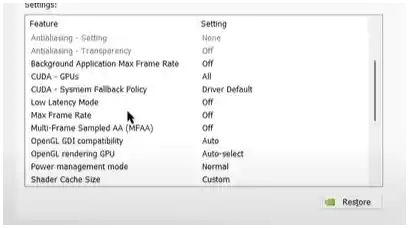
Before you start diving into driver settings and system files, the easiest fixes are right inside the game itself. Let’s get these sorted first.
The most effective step is to lower your graphical settings. Go into the graphics menu and turn everything down to the lowest possible option. This will give you a performance baseline to work from.
Also, try switching your display mode. If you’re running in Full Screen, try changing to Windowed or Borderless mode. For some systems, this simple change can work wonders for fixing stuttering.
NVIDIA Control Panel Settings for FC 26
If you have an NVIDIA graphics card, you can dial in specific settings to force the best performance for FC 26.
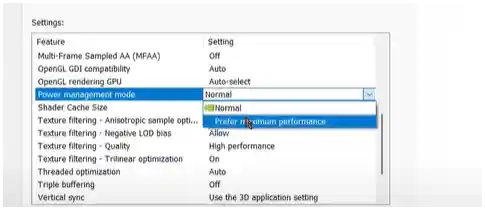
Right-click your desktop and open the NVIDIA Control Panel. Go to “Manage 3D settings,” then click on the “Program Settings” tab. Add the FC 26.exe file and apply these settings:
| Setting | Recommended Value |
| Select preferred graphics processor | High-performance NVIDIA processor |
| Power Management Mode | Prefer Maximum Performance |
| Image Sharpening | Off |
| Threaded Optimization | On |
| Low Latency Mode | Off or Ultra |
| Texture filtering – Quality | Performance |
AMD Radeon Software Settings for FC 26
For Team Red, you can get a similar performance boost by tweaking your settings in the AMD Radeon Software.
Open the AMD Software and navigate to the “Gaming” tab, then “Global Graphics.” For the best results in FC 26, apply the following settings:
| Setting | Recommended Value |
| Radeon Anti-Lag | Disabled |
| Radeon Boost | Disabled |
| Image Sharpening | Off |
| Anti-Aliasing Mode | Use Application settings |
| Anti-aliasing Method | Multi-sampling |
| Morphological Filtering | Off |
| Anisotropic Filtering | Disabled |
| Texture Filtering Quality | Performance |
| Surface Format Optimization | Enabled |
| Tessellation Mode | AMD Optimized |
| Wait for V-sync | Off |
| OpenGL Triple Buffering | Off |
Intel Graphics Settings for FC 26
If you’re playing on integrated Intel graphics, you still have options to improve performance. Open your Intel Graphics Command Center and look for these settings:
- Application Optimal Mode: Set to Enable.
- Anti-Aliasing: Set to Override Application Settings. You can then either turn it off completely or use the “Conservative Morphological Anti-Aliasing” option for a good balance.
- General Settings: Make sure this is set to Performance.
Windows Optimizations for a Smoother Game
Finally, there are a few system-level tweaks you can make in Windows to free up resources for your game.
Set High Priority in Task Manager This tells Windows to give FC 26 more of your PC’s processing power.
- Launch FC 26.
- Press
Ctrl + Shift + Escto open the Task Manager. - Go to the “Details” tab.
- Find
FC 26.exein the list, right-click it, and go to “Set priority” -> “High.”
Disable Unnecessary Services This is a pro-gamer move to stop background apps from hogging resources.
- Press
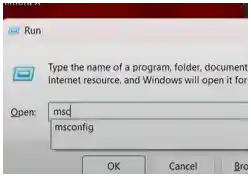
Windows Key + R, typemsconfig, and hit Enter. - Go to the “Services” tab.
- Check the box at the bottom that says “Hide all Microsoft services.”
- Now, look through the remaining list and uncheck any programs you don’t need running while you play (e.g., software updaters, etc.). Click OK and restart your PC.
Temporarily Disable Your Antivirus Sometimes, antivirus software can interfere with games and cause performance issues. Try disabling your antivirus protection only while you are playing FC 26, and remember to turn it back on afterward.