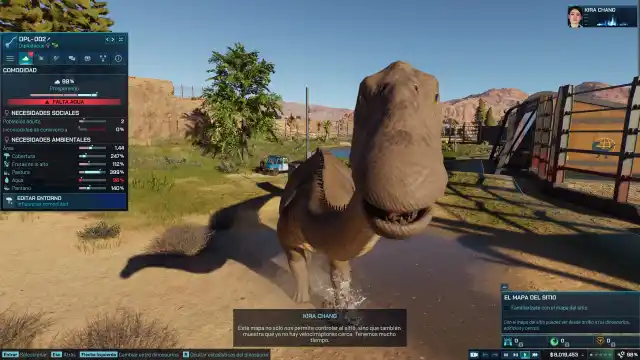
Jurassic World Evolution 3 – How to Fix WASD Not Working
WASD keys stopped working in Jurassic World Evolution 3? Here’s how to fix the control bug in just three quick steps — no restart needed.
When your keyboard suddenly stops responding mid-game, it’s frustrating — especially when you can’t move your camera or manage your park properly. This short, practical guide walks you through how to fix the WASD not working issue in Jurassic World Evolution 3 without reinstalling or losing progress.
Who This Guide Is For
If you’re playing Jurassic World Evolution 3 on PC and your WASD or arrow keys stop responding — usually after alt-tabbing or changing display modes — this is for you. You’ll need just your keyboard and mouse; no external tools required.
Quick Takeaways
- Fix the issue in under a minute with 3 simple steps.
- No restart or file edits needed.
- Works for most players experiencing input freeze after tabbing out.
Step-by-Step Fix
Step 1: Access the Options Menu
- Press the Esc key to open your in-game options.
- If none of your keys are responding, hold the Alt key and click once on the game window.
- This refocuses the input window and re-enables your keyboard controls.
Step 2: Toggle Capture Mode
- Inside the options menu, find and click “Capture Mode.”
- This temporarily shifts control to the in-game camera tool.
Step 3: Exit Capture Mode
- Press Esc again or click the small “X” icon in the top-left corner of the capture mode window.
- Once you exit, your player controls — including WASD — should be restored.
🦖 Done! You can now freely navigate your park again.
Why This Fix Works
This issue usually occurs because Jurassic World Evolution 3 misdirects input focus when you alt-tab or enter certain menus too quickly. Capture Mode effectively resets input focus, forcing the game to re-recognize your keyboard.
Pro Tips
- Avoid rapid alt-tabbing. Pause before switching windows to prevent input desync.
- Use borderless window mode. It’s more stable for alt-tabbing during gameplay.
- Bind a backup control key. Map a secondary movement key in case this happens mid-mission.
Common Mistakes
- ❌ Restarting the game immediately. It’s unnecessary — this fix works faster.
- ❌ Rebinding keys before exiting capture mode. The game won’t register inputs properly.
- ❌ Ignoring the “Alt + click” step. Without it, the keyboard might stay inactive.
Optional Backup Check
If the above steps don’t work:
- Navigate to your local game settings:
%LOCALAPPDATA%\Frontier Developments\Jurassic World Evolution 3\Config - Delete or rename
InputBindings.xmlto reset controls to default.
Troubleshooting Table
| Issue | Fix | Time |
|---|---|---|
| WASD unresponsive | Alt + Click game window | 10 sec |
| Options menu frozen | Wait 3 sec, press Esc twice | 15 sec |
| Keys still unresponsive | Delete InputBindings.xml | 1 min |
Quick Recap
In short:
- Press Alt + Click if inputs freeze.
- Toggle Capture Mode on and off.
- Regain control — no restart required.
Feedback
Did this fix work for you? Drop a comment or share your tweak if you found a faster method — it might save another park manager a lot of frustration.
You can switch between modes anytime by typing the mode name (e.g., Article Mode, Blog Article + Image Mode, Custom Mode, Multilingual Mode).